Enable Customer Access to Security Information
The Security Center is Alpha. The features and functionality described on this page are subject to change.
The Security Center allows you to provide security information to customers through Enterprise Portal (Classic) or Enterprise Portal (New). The configuration steps and customer experience differ between the two portals.
Enterprise Portal (Classic)
The Security Center tab in Enterprise Portal (Classic) displays security information for each available release version. Customers can:
- View a CVE report with the complete list of known vulnerabilities and their severity levels
- View details about the vulnerabilities identified for each image
- Understand how many CVEs are fixed by upgrading to newer versions
- Download the Software Bill of Materials (SBOM) in SPDX format for compliance and security audits
The following shows an example of the Security Center dashboard in Enterprise Portal (Classic):
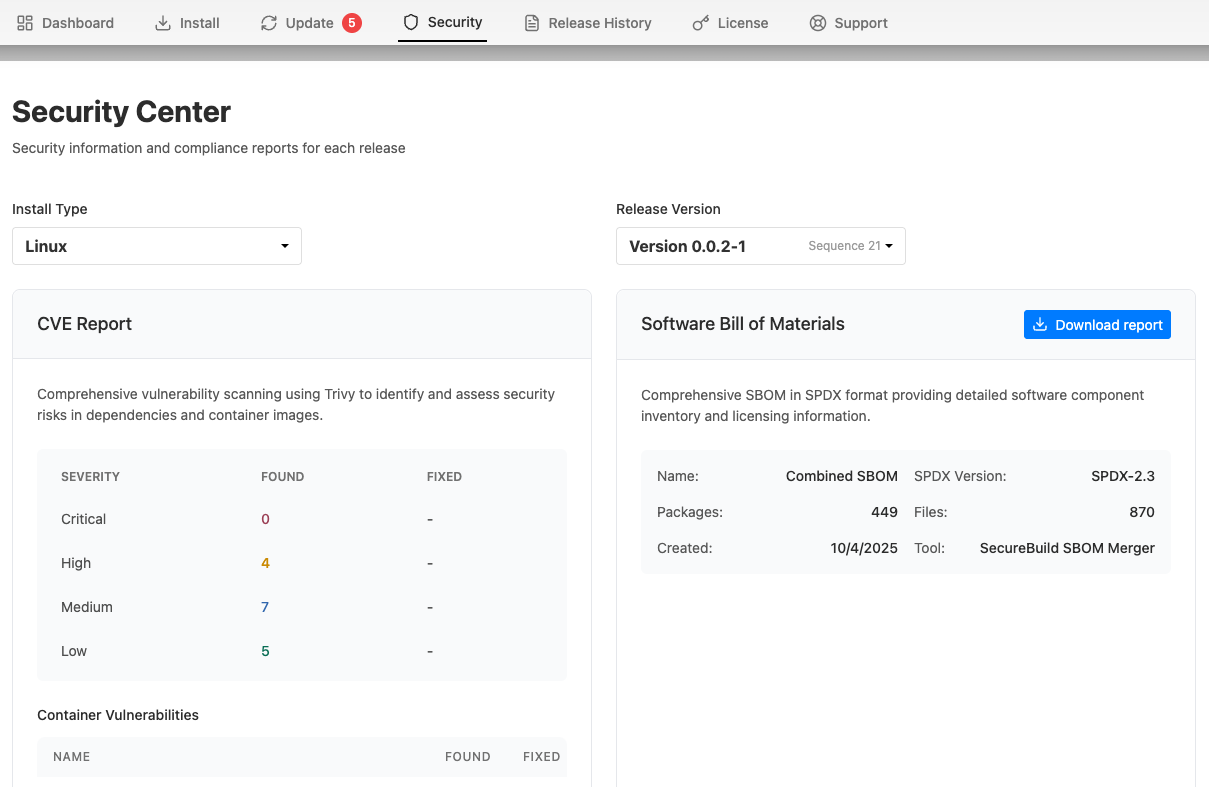
View a larger version of this image
Enable the Security Center in Enterprise Portal (Classic)
The Security Center tab is not enabled by default. If the Security Center feature flag is enabled for your team, you can enable the tab for one customer or all customers.
To enable the Security Center tab for one customer:
- In the Vendor Portal, go to Customers > [Customer] > Enterprise Portal access.
- Enable Enable Security Center for this customer.
To enable the Security Center tab for all customers using Enterprise Portal (Classic):
- In the Vendor Portal, go to Enterprise Portal > Portal Settings.
- Under Optional Features, enable Enable Security Center.
Enterprise Portal (New) (Alpha)
In Enterprise Portal (New), you add a Security page to your content repository. The page can include a release selector, CVE report, and SBOM report. For more information, see Security components in Customize Enterprise Portal Content.
Customers can select a release and review CVEs by severity, affected component, and container image. Customers can also compare the selected release with the latest release, follow links to upgrade affected instances, and download an SBOM.
Security reports are available for Helm and Embedded Cluster releases. Customers whose licenses support only KOTS or kURL see a message that security reports are not available.
Configure Security Center settings
To configure Security Center for Enterprise Portal (New):
- In the Vendor Portal, go to Enterprise Portal > Security Center.
- Enable Enable Security Center.
- Configure Only show fixable CVEs:
- When enabled, customers see only CVEs with an available fix.
- When disabled, customers can switch between all CVEs and CVEs with an available fix.
- Select Save changes.
Enable Security Center for a customer
The app-level Security Center setting does not grant access to individual customers. To grant access:
- In the Vendor Portal, go to Customers > [Customer] > Enterprise Portal access.
- If Portal Version is available, set it to Use new Enterprise Portal for this customer.
- Enable Enable Security Center for this customer.
Add a Security page to the content repository
Add a page containing the Security Center components to each applicable version branch in your content repository. Include the page in toc.yaml so that customers can open it from the portal navigation. For more information, see Table of contents in Customize Enterprise Portal Content.